
 Games
Games Game Series
 Guide
Guide
 简体中文
简体中文 हिन्दी
 한국어
한국어 Tiếng Việt
 ไทย
ไทยIf you have been navigating the world of imported visual novels and 18+ PC titles for a while, you already know that these games rarely come in simple, double-click installer packages. More often than not, you are dealing with massive .iso files—digital replicas of physical CDs and DVDs.
While tools like DAEMON Tools are fantastic for simply “mounting” these virtual discs to fool your computer into thinking a physical CD is inserted, sometimes you need a little more control. What if you don’t want to mess around with setting up virtual drives? What if you need to apply an English translation patch directly to the game files before you even install it? Or what if you just want to rip the game’s soundtrack straight from the disc image?
Enter UltraISO.
If DAEMON Tools is a reliable hammer, UltraISO is a complete Swiss Army knife for disc image files. It is an incredibly powerful, lightweight piece of software that allows you not only to mount .iso files but to actually open them up, view what is inside, extract the files exactly like you would with a .zip archive, and even edit the contents of the .iso itself.
In this comprehensive guide, we are going to walk through exactly how to use UltraISO. Whether you are looking to quickly extract a game to bypass frustrating installation DRM, or you want to learn how to edit an image file to apply fan-made patches, this tutorial covers everything you need to get your games running flawlessly.
Why Choose UltraISO Over Other Mounting Software?
Before we jump into the installation, let’s talk about why so many veteran players in the visual novel community swear by UltraISO.
When you mount a game with standard virtual drive software, the files on that “disc” are read-only. You cannot change them. However, many imported 18+ games require you to drag and drop English fan-translation patches or specific localization fixes into the installation folder. Sometimes, the original installer itself is region-locked and refuses to run.
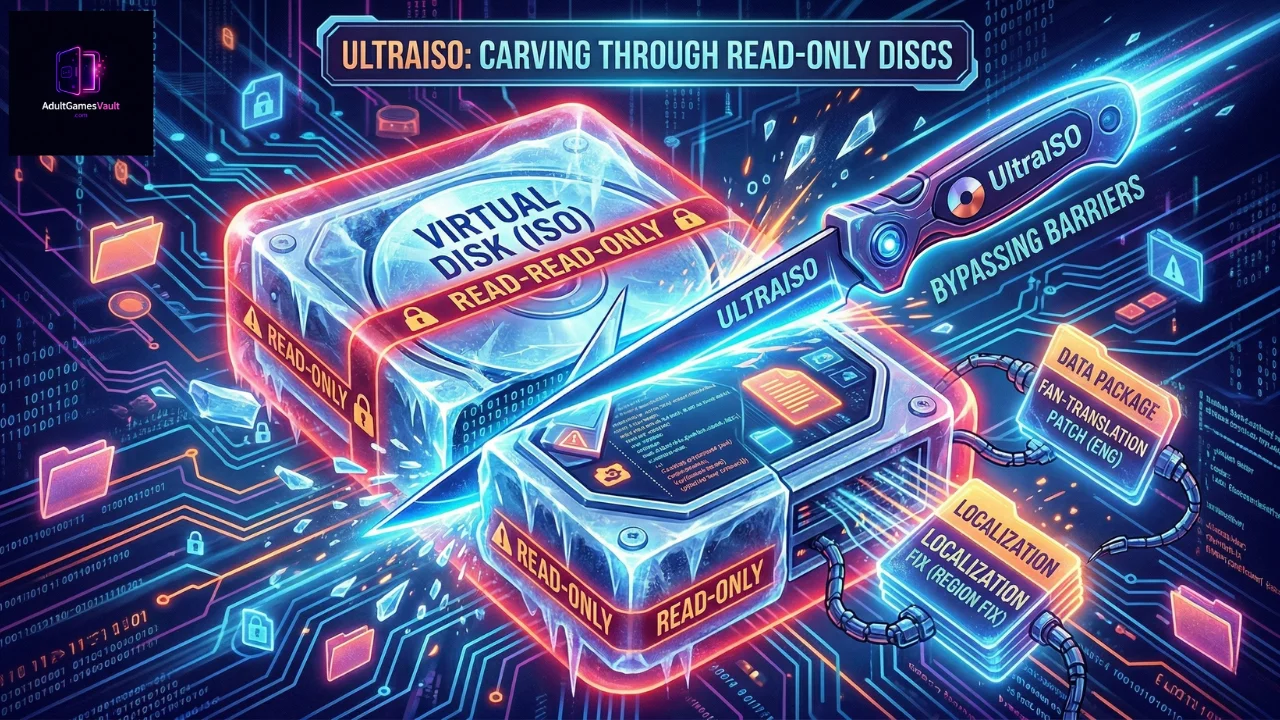
UltraISO allows you to completely bypass the traditional installation process. Instead of mounting the .iso and running setup.exe, you can use UltraISO to simply extract the raw game files into a folder on your hard drive. From there, you can apply your English patches, run the game executable via Locale Emulator, and play instantly without ever actually “installing” the game to your Windows registry. This method is a lifesaver for older, stubborn games that refuse to install on modern Windows 10 or 11 systems.
How to Download and Install UltraISO Safely
Getting UltraISO set up on your machine is a quick and painless process.
Downloading the Software
Always download UltraISO directly from the official developer’s website (EZB Systems). Avoid third-party download portals, as they often bundle legitimate software with unwanted browser toolbars or adware. You can get the software here:
https://www.ultraiso.com/download.html
The Premium vs. Trial Version
When you go to download, you will notice that UltraISO is premium software. However, it offers a highly generous “Free Trial” version. The only major limitation of the trial version is that you cannot save an edited .iso file that is larger than 300MB.
Here is the good news: for 99% of what we do in the visual novel and 18+ gaming community (mounting games and extracting files), the 300MB save limit does not apply! You can extract a massive 8GB visual novel .iso using the free trial with zero issues.
Installation Steps
- Run the downloaded uiso9_pe.exe setup file.
- Accept the license agreement.
- Choose your installation directory.
- Crucial Step: When you reach the “Select Additional Tasks” screen, make sure the box that says “Setup UltraISO ISO CD/DVD emulator (ISODrive)” is checked. This is the feature that allows you to mount games.
- Finish the installation and launch the program. When the prompt appears, just click “Continue to Try”.
Step-by-Step Guide: How to Mount an ISO with UltraISO
If you just want to play a game exactly as it was intended, mounting is the way to go. Here is how to use UltraISO’s built-in virtual drive.
Step 1: Verify the Virtual Drive
First, let’s make sure UltraISO created a virtual drive successfully. Open “This PC” (or “My Computer”) on Windows. You should see your standard C: Drive, maybe a D: Drive, and a new CD/DVD drive that wasn’t there before. This is your UltraISO virtual drive.
Step 2: Mounting the Game from Windows Explorer
UltraISO integrates beautifully into Windows.
- Navigate to the folder where your downloaded .iso game file is located.
- Right-click the .iso file.
- Hover over the UltraISO menu option.
- Click Mount to drive [Letter]:.
That’s it! If you go back to “This PC”, you will see that your virtual drive now has the game loaded into it. You can double-click it to run the installer.
Step 3: Unmounting the Game
When you are done installing or playing, you should unmount the image to keep your system clean.
- Right-click the virtual drive in “This PC”.
- Hover over UltraISO.
- Select Eject. The drive is now empty and ready for your next game.
The Real Superpower: How to Extract Files Directly from an ISO
This is where UltraISO truly shines for our specific gaming niche. If a game’s installer is broken, region-locked, or giving you a “mojibake” error even with Locale Emulator, extracting the files directly is your best workaround.
Step 1: Open the ISO File
Instead of mounting the file, we are going to open it.
- Right-click your game’s .iso file.
- Select Open with… and choose UltraISO (or simply double-click the file if UltraISO is set as your default program for image files).
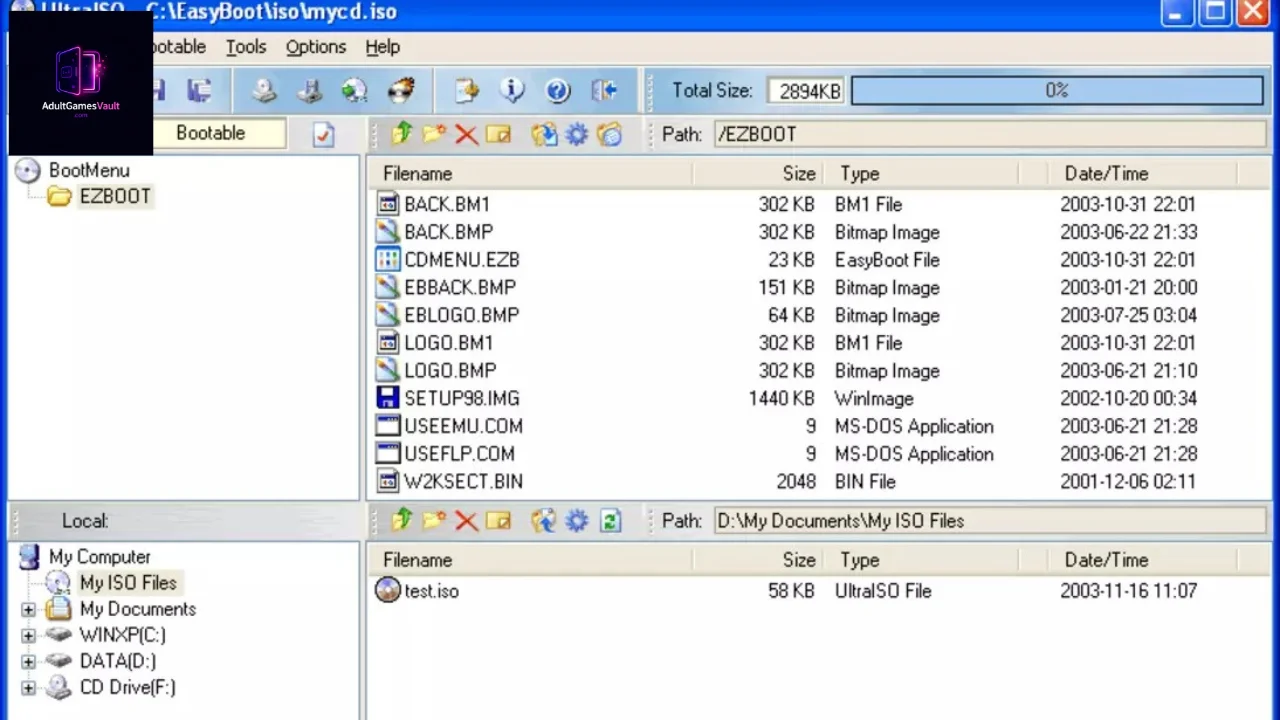
- The UltraISO interface will pop up. It looks a bit like an older version of Windows File Explorer.
Step 2: Explore the Contents
In the top right pane of the UltraISO window, you will see all the raw files and folders hidden inside the disc image. You will likely see folders named “Data”, “Voice”, “BGM”, and the main game.exe or setup.exe files.
Step 3: Extract the Files
- Create a brand new, empty folder somewhere on your hard drive (e.g., C:\Games\MyNewVisualNovel). Make sure there are no Japanese characters in this folder path!
- In UltraISO, click on the top-most folder in the left pane to ensure you are selecting everything on the disc.
- Click the Actions tab at the top of the window, then select Extract… (or press F4 on your keyboard).
- A window will pop up asking for an output directory. Navigate to the empty folder you created in Step 1 and click OK.
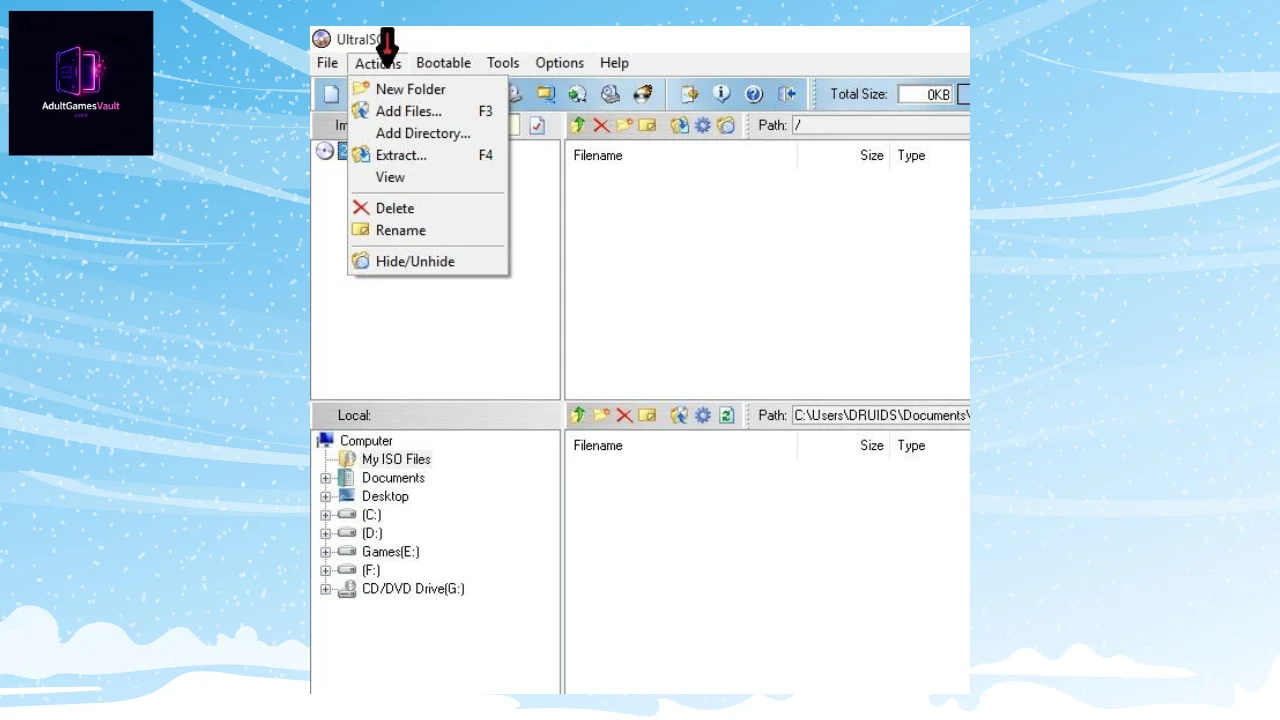
UltraISO will now unpack the entire .iso file into that folder. Depending on the size of the game (some modern 18+ titles can be over 10GB), this might take a few minutes. Once it is done, you can close UltraISO. You can now go to that folder, apply your English translation patches directly into the directory, and run the .exe file using Locale Emulator!
Common Errors and Troubleshooting Guide
Even though UltraISO is incredibly stable, you might run into a few hiccups depending on your Windows security settings. Here is how to fix the most common issues.
Error: The “UltraISO” option doesn’t appear when I right-click a file.
The Fix: The shell integration didn’t install correctly. Open UltraISO as an Administrator. Go to Options -> Configuration -> Integration tab. Make sure the .iso box is checked, and check the box that says “Enable Shell Integration.” Click OK and restart your PC.
Error: “Virtual drive not found” when trying to mount.
The Fix: You might have accidentally skipped installing the ISODrive component during setup. Open UltraISO as an Administrator. Go to Options -> Configuration -> Virtual Drive tab. Choose “1” from the Number of devices dropdown menu, and click OK.
Error: “File size limit exceeded” when trying to save an ISO.
The Fix: As mentioned earlier, this is the trial version limitation. You cannot edit and save an .iso file larger than 300MB unless you buy the premium version. Remember, this only applies to saving modified ISOs. You can still extract files of any size for free.
Conclusion
When dealing with the complexities of imported visual novels and region-locked 18+ PC games, having versatile tools at your disposal is the difference between a frustrating night of troubleshooting and a great gaming session.
While standard mounting software has its place, UltraISO provides an unmatched level of control over your game files. By mastering the extraction method, you can bypass stubborn region-locked installers, easily apply community-made English patches, and ensure your game directories are set up perfectly for tools like Locale Emulator.
Take a few minutes to get familiar with UltraISO’s interface. Once you realize you can treat massive .iso files just like standard .zip folders, your approach to installing niche games will never be the same.