
 Games
Games Game Series
 Guide
Guide
 简体中文
简体中文 हिन्दी
 한국어
한국어 Tiếng Việt
 ไทย
ไทยIf you are a fan of imported doujin games, indie RPGs, or niche 18+ titles from storefronts like DLsite, you are intimately familiar with the ultimate gamer heartbreak. You find a game with incredible art, amazing tags, and rave reviews. You buy it, download it, extract the files, and boot it up, only to realize there is absolutely no English patch available.
Unless you are fluent in Japanese, Chinese, or Korean, your gameplay experience is going to involve blindly clicking through menus, missing out on crucial story elements, and getting completely lost during complex RPG quests. In the past, players had to rely on holding up their phone cameras using Google Translate or waiting literal years for a dedicated fan-translation group to localize the game.
Those dark days are finally over, thanks to a revolutionary piece of software called MTool.
MTool is an incredibly powerful, all-in-one hooking program designed specifically to translate games built on engines like RPG Maker (MV, MZ, VX Ace) and Wolf RPG Editor. Instead of waiting for a patch, MTool injects code directly into the game as it runs, pulling the text, running it through machine translation APIs, and displaying it back to you in your native language in real-time.
In this comprehensive guide, we will cover everything you need to know about how to use MTool, from basic installation to setting up your real-time translations and choosing your preferred language, so you never have to skip a great unlocalized game ever again.
Why MTool is an Absolute Game-Changer
Before we dive into the installation process, it is important to understand exactly why MTool has become a mandatory staple on the hard drives of imported game enthusiasts.
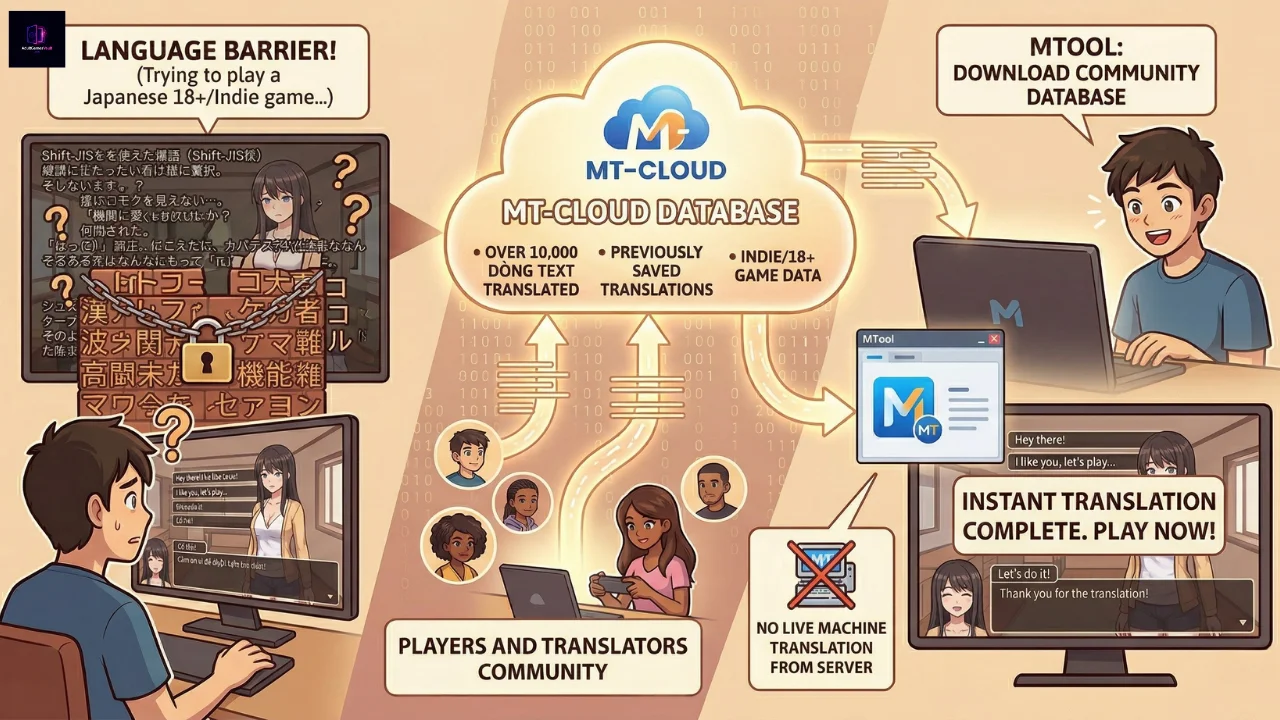
First and foremost, MTool accesses community translation databases. Because MTool is so widely used in the 18+ and indie gaming community, there is a very high chance that someone else has already played the exact Japanese game you are trying to play. When they used MTool to translate it, those translated text strings were saved to a cloud database. When you boot up the same game, MTool can simply download that existing database, giving you an instant, fully translated game without needing to constantly ping a server for live machine translations.
Secondly, MTool doubles as a fully functional cheat engine. Niche RPGs are notorious for requiring hours of tedious grinding to unlock specific gallery scenes or progression milestones. MTool features a built-in interface that allows you to instantly edit your gold, items, character stats, and internal game variables. It essentially combines the power of a real-time translator with the convenience of a save editor.
A Truly Global Experience: What Languages Does MTool Support?
You might think MTool is only for translating Japanese into English, but it is actually a massive localization powerhouse for gamers all around the world. Whether your native language is European, Asian, or anything in between, MTool’s built-in translation engines have you covered.
When you open the MTool interface to configure your game, you will see a “Target language” dropdown menu (usually positioned right next to the Source language, which defaults to Japanese for most imported games). Clicking this reveals an incredibly diverse list of supported languages. You can seamlessly translate your favorite 18+ titles and RPGs into:
- European Languages: English, Español (Spanish), Português (Portuguese), Русский (Russian), Deutsch (German), Français (French), Italiano (Italian), Magyar (Hungarian), and Türkçe (Turkish).
- Asian & Southeast Asian Languages: Tiếng Việt (Vietnamese), 한국어 (Korean), ไทย (Thai), Bahasa Indonesia, Hindi (including a highly useful “Hindi to English Transliteration” option for easier reading), and of course, various iterations of Chinese (Simplified, Traditional, Hong Kong, and Taiwan formats).
- Middle Eastern Languages: العربية (Arabic) – though the tool interface does provide a helpful disclaimer that Arabic text may occasionally have display quirks depending on how the specific game engine handles font rendering and right-to-left text.
This massive roster means that no matter where you are from, you can enjoy niche visual novels and RPG Maker games in the language you are most comfortable reading. All you have to do is select your preferred target language from the dropdown, choose your translation engine, and let the software work its magic!
What You Need to Prepare Before Installing MTool
To ensure a smooth setup, there are a few crucial steps you need to take before downloading the software. MTool works by hooking into other executable files, which means your computer’s security systems are naturally going to be highly suspicious of it.
Create a Clean Folder Path
This is the number one reason MTool fails to work for new users. Neither MTool nor the Japanese games you are trying to play like special characters or spaces in their folder paths.
Do not put your game in a folder named C:\Users\John Doe\Downloads\My Awesome Game (18+).
Instead, move your game and your MTool installation to a simple, clean root directory, such as C:\Games\MTool and C:\Games\GameName.
Whitelist MTool in Your Antivirus
Because MTool creates a custom .dll file and injects it into your game’s directory to alter the text, Windows Defender and third-party antivirus software will almost always flag it as a false positive (usually categorizing it as a Trojan or DLL hijacker). Before you extract the files, temporarily disable your real-time protection, extract the software, and immediately add the entire MTool folder to your antivirus exclusions list.
Get the Official Software
Always download MTool from the developer’s official channels or Patreon page. The base version of the tool is free to use and perfectly sufficient for translating and playing most games. You will need to create a free account on their platform to use the tool, as it requires online access to pull translation data.
Step-by-Step Installation Guide for MTool
Now that your PC is prepped and your antivirus is cooperating, let’s get MTool installed and ready to hook into your games.
You can get the free version here:
https://www.patreon.com/cw/AdventCirno?vanity=AdventCirno
Free version can give you Bing translation engine which is good to use (but slow translation). You will get chat GPT 3.5 if you upgrade your tier (But I think free tier is OK for you).
Extract and Launch
Once you have downloaded the official MTool .zip or .rar file, right-click it and extract it to that clean folder path we discussed earlier (e.g., C:\Games\MTool). Inside the extracted folder, look for the main executable file, usually named Use me to open the Tool.bat. Right-click it and select Run as administrator to give it the necessary permissions to interact with your game files.
Step 2: Log In to the Client
Upon launching, MTool will ask you to log in. Enter the credentials for the free account you created on their website. Logging in is mandatory because the software needs to communicate with translation APIs and the community database servers to fetch your translated text.
H3: Step 3: Familiarize Yourself with the Dashboard
Once logged in, you will be greeted by the main MTool dashboard. It might look a little intimidating at first, with various tabs for different game engines and settings, but the interface is actually quite intuitive once you know where to look. The center of the screen is your drop zone—this is where you load your games.
How to Use MTool to Translate Your Games
This is the moment of truth. You have an unlocalized 18+ RPG Maker game, and you want to play it in your native language. Here is exactly how to do it.
Step 1: Load the Game into MTool
Open your Windows File Explorer and navigate to your unlocalized game’s folder. Look for the main executable file used to launch the game (this is usually Game.exe, Player.exe, or nw.exe for RPG Maker MV/MZ titles). Simply click and drag that .exe file directly into the center of the MTool dashboard.
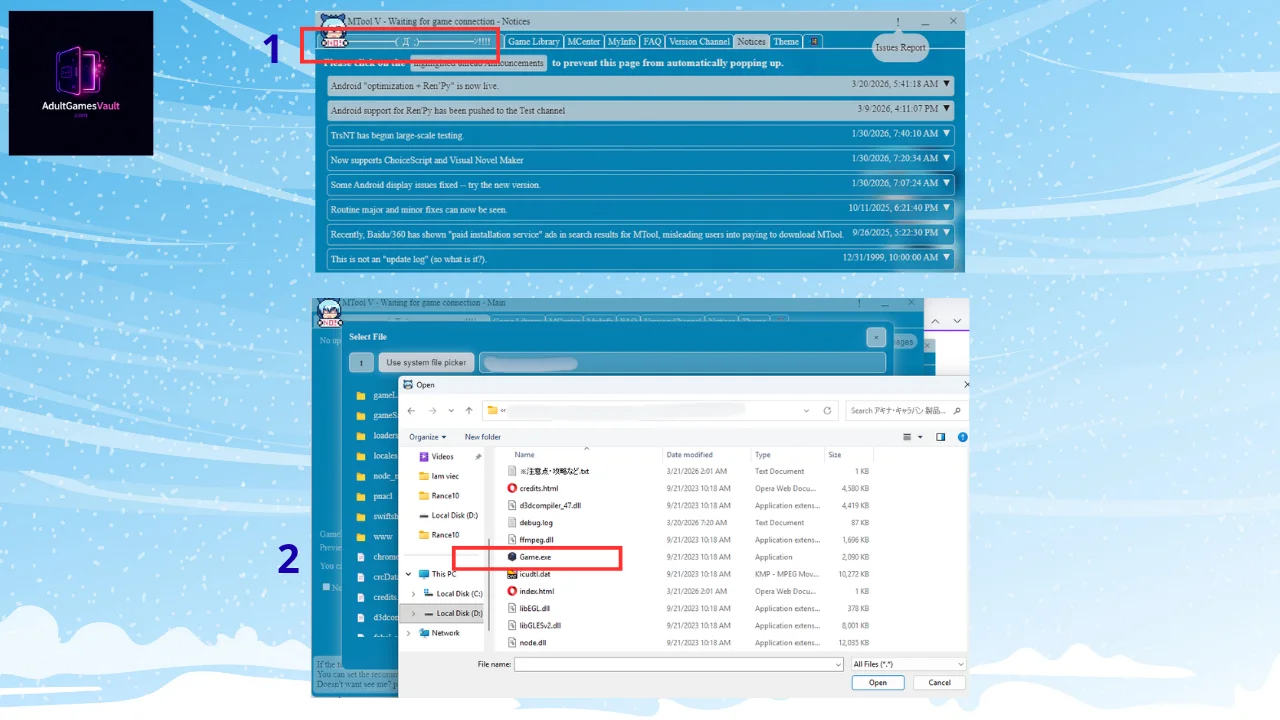
Step 2: Let the Hooking Process Finish
MTool will immediately recognize the game engine and begin injecting its translation code. A command prompt window might briefly flash on your screen, and you will see a progress bar in MTool.
Depending on the size of the game, this process can take anywhere from a few seconds to a couple of minutes. Let it do its job.
Step 3: Configure Your Translation Settings
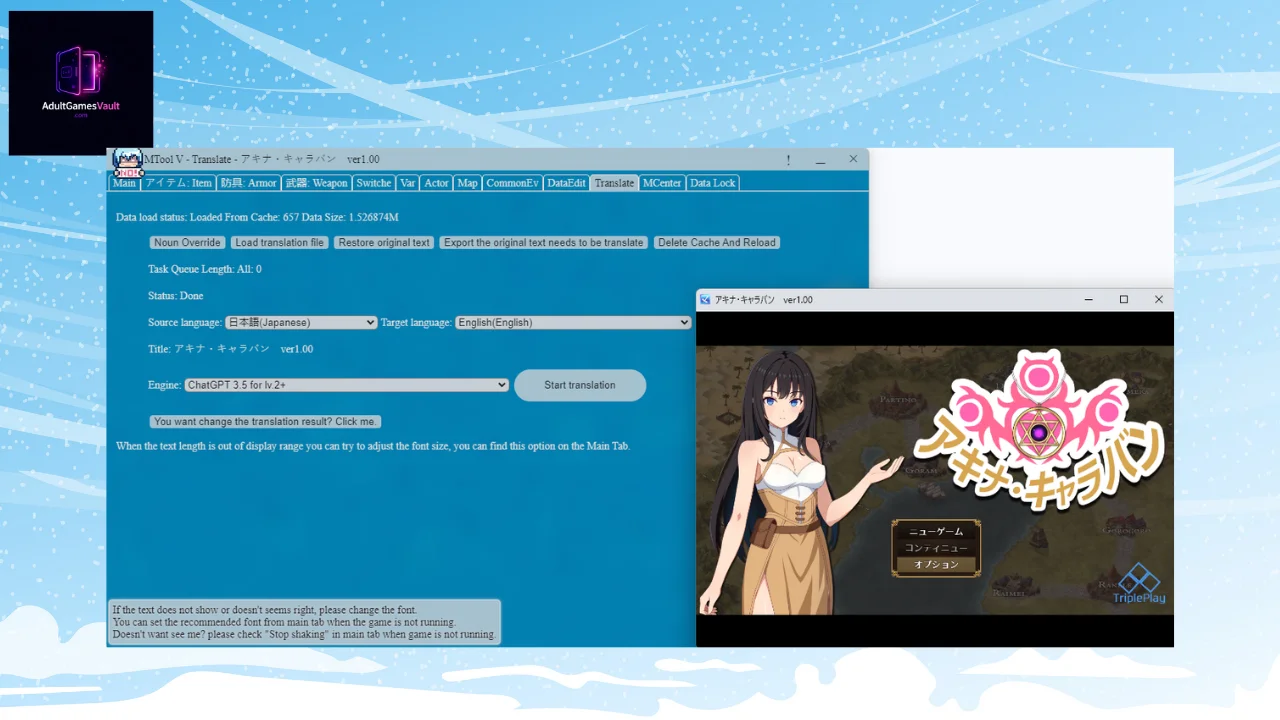
Once the hooking process is complete, the game will automatically boot up. However, you will notice something new: a floating MTool overlay or a separate settings window alongside your game. Navigate to the translation settings area. Here, you will see the language options we discussed earlier.
- Ensure the Source Language is set correctly (usually Japanese or Chinese).
- Select your Target Language from the massive dropdown list (e.g., English, Español, Tiếng Việt).
- Select your Engine. MTool often defaults to a “Free Translator” API, which works wonderfully for real-time processing.
Step 4: Choose Your Translation Method
- Load Community Translation: Always check this first! If another user has already translated this game using MTool, you can download their completed translation file instantly. This is the best option, as it is instantaneous and often features manual corrections.
- Auto-Translate (Live): If the game is brand new, let your selected Engine translate the text boxes on the fly. There might be a slight one-second delay when talking to NPCs as the software fetches the translation, but it is highly playable.
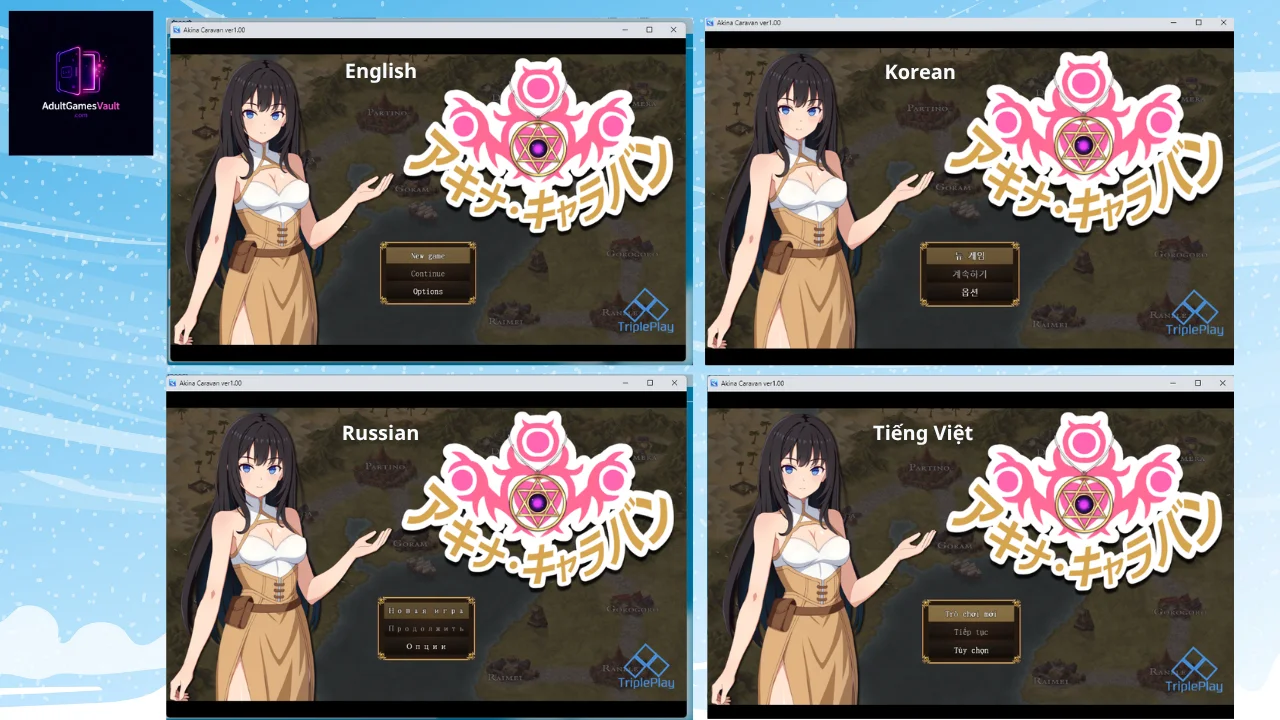
Switch back to your game window, and you should now see the original Japanese text replaced by readable, localized text!
Bonus Feature: Using MTool’s Built-in Cheat Menu
Since you already have MTool hooked into your game, you might as well take advantage of its secondary features, especially if you are playing a notoriously difficult 18+ RPG and just want to quickly unlock the gallery scenes without the endless grind.
While the game is running through MTool, switch to the MTool interface and look for the Data or Cheat tab. Because MTool has full access to the game engine’s internal code, you can do the following:
- Edit Currency: Find the value for your in-game gold and change it to 999,999.
- Modify Stats: Instantly level up your characters or max out their HP and MP to breeze through tedious boss fights.
- Item Spawning: Browse the game’s internal item ID list and inject rare weapons, key items, or gallery-unlocking tokens directly into your inventory.
Common Errors and How to Fix Them
While MTool is a fantastic utility, PC gaming is rarely flawless. If you run into issues, try these common fixes:
Error: The game crashes immediately after dragging it into MTool.
The Fix: Check your folder paths! Rename the game folder to English (e.g., rename “魔法の少女” to “Magical Girl”). Ensure your folder is on the root drive (C:\Games). Finally, check if your antivirus quarantined the injection files.
Error: The translated text overlaps or runs off the screen.
The Fix: Machine translations are often much longer than Japanese kanji. In the MTool Translation settings (right below the language dropdowns), look for the “Font” options. You can force the game to use a smaller font or adjust the text length settings to ensure the translated text fits neatly inside the dialogue boxes.
Error: “Failed to connect to server” when trying to translate.
The Fix: MTool requires a constant internet connection to use the live translation APIs. Check your firewall settings to ensure MTool is allowed to communicate over your network, and verify that you are logged into the client properly.
Conclusion
Navigating the massive catalog of unlocalized visual novels, RPGs, and 18+ doujin games used to be an exclusive club for those who could read Japanese. Today, MTool has completely leveled the playing field for gamers worldwide.
With its robust support for over 20 different languages, built-in cheat functions, and community-driven translation databases, MTool is undeniably the most powerful asset you can have on your PC. By taking the time to set up this software, you are unlocking thousands of incredible games that you otherwise never would have been able to experience.
Remember to keep your folder paths clean, manage your antivirus exclusions, and always experiment with different target languages and fonts to get the best possible reading experience!