
 Games
Games Game Series
 Guide
Guide
 简体中文
简体中文 हिन्दी
 한국어
한국어 Tiếng Việt
 ไทย
ไทยPicture this: You have successfully downloaded a massive 18+ visual novel. You followed all the steps perfectly—you extracted the archive with 7-Zip, mounted the .iso file using DAEMON Tools, bypassed the region lock with Locale Emulator, and finally got the game installed. You double-click the desktop shortcut, ready to reap the rewards of your hard work, and suddenly, a harsh Windows error sound chimes through your speakers.
A tiny, frustrating error box pops up reading: “The code execution cannot proceed because MSVCP140.dll was not found. Reinstalling the program may fix this problem.” Or perhaps you get the dreaded, cryptic “Application was unable to start correctly (0xc000007b).”
Reinstalling the game won’t fix this. Your game files are fine. The problem is actually your Windows operating system.
When developers build games using engines like Ren’Py, Kirikiri, or RPG Maker, they rely on specific background frameworks provided by Microsoft—most notably, Visual C++ Redistributables and DirectX. If your PC doesn’t have the exact version of the framework that the developer used to build the game back in 2012, or 2015, or 2022, the game simply cannot run. It is missing the essential building blocks it needs to function.
Hunting down every single version of these frameworks individually across the Microsoft website is an absolute nightmare. That is where All in One Runtimes (AIO Runtimes) comes in.
This brilliant utility package takes every single essential framework, runtime, and library your PC could ever possibly need to run PC games and bundles them into one automated, single-click installer. In this guide, we will walk through how to use All in One Runtimes to bulletproof your PC so you never see a missing .dll error ever again.
Why Do You Need AIO Runtimes for Visual Novels and Imported Games?
You might be thinking, “I play modern games on Steam all the time without any issues. Why is this only happening with my downloaded visual novels?”
When you install a game through a major storefront like Steam or Epic Games, those platforms automatically silently install the required Visual C++ and DirectX files in the background before the game launches.
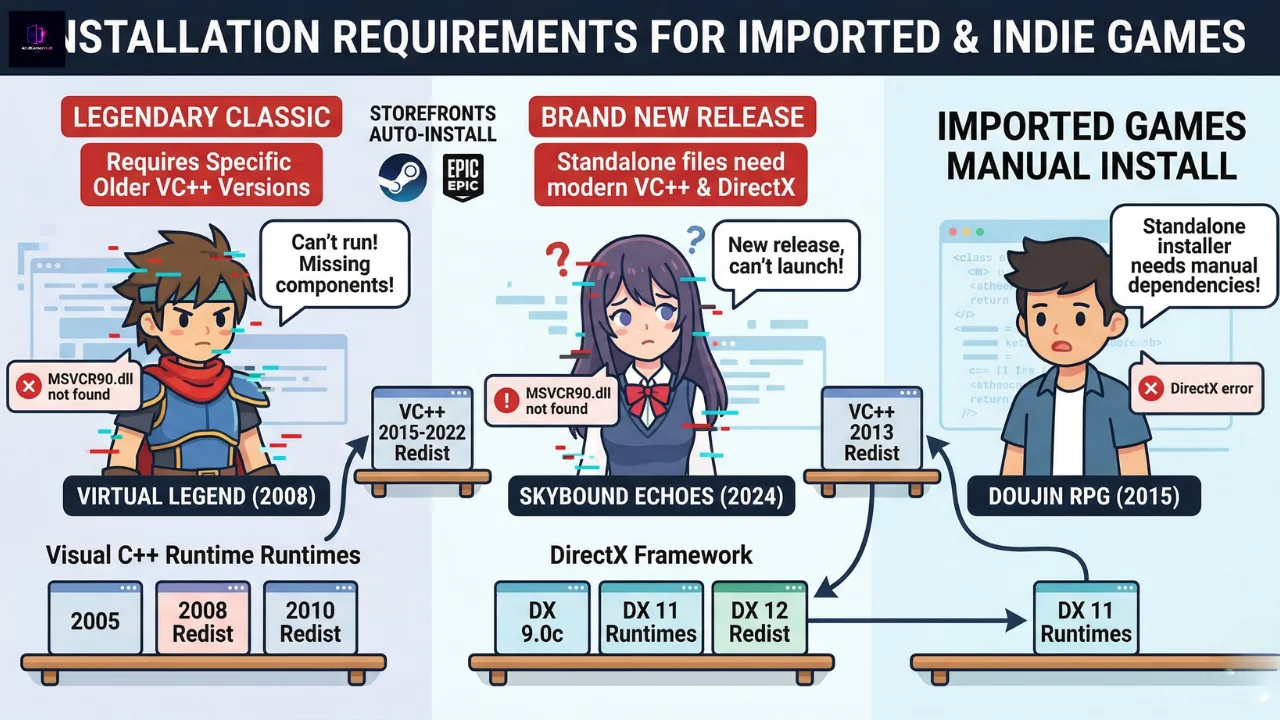
However, when you are dealing with imported doujin games, indie RPGs, or titles from sites like DLsite, you are installing raw, standalone files. There is no storefront managing your background frameworks. Furthermore, the imported gaming scene is a mix of brand-new releases and legendary classics from the early 2000s. A game built in 2008 requires an entirely different Visual C++ package than a game built in 2024.
All in One Runtimes bridges this gap by installing every version concurrently. It ensures your system has a complete library of code, meaning whether you are playing a retro classic or yesterday’s hottest release, your PC is ready for it.
What Exactly is Included in the Package?
The AIO Runtimes package is heavy (usually around 350MB to 400MB), but that is because it packs an incredible amount of essential software. When you run it, it typically installs:
- .NET Framework: Essential for many modern game launchers and modding tools.
- Visual C++ Redistributables: It installs every single version from 2005 all the way up to the current year (both 32-bit and 64-bit versions). This is what fixes 99% of .dll errors.
- DirectX End-User Runtimes: Fixes errors related to missing d3dx9.dll or audio issues in older games.
- Additional Frameworks: Sometimes includes essential runtimes for older web-based or Flash games, though modern versions keep this fairly streamlined.
Step-by-Step Guide: How to Download and Install All in One Runtimes
Using this tool is arguably the easiest part of setting up a gaming PC. Here is how to do it safely and effectively.
Step 1: Download from a Safe Source
The original creator of the All in One Runtimes package is a German developer known as Sereby. Because it is a system-level utility, you must ensure you are downloading it from a reputable tech site to avoid malware. Search for “All in One Runtimes ComputerBase” or check sites like MajorGeeks. Look for the latest version available (the file will usually be named something like aio-runtimes_v2.5.0.exe).
You can download it here:
https://sourceforge.net/projects/all-in-one-runtimes
Step 2: Run the Executable
Once downloaded, close any games or heavy applications you currently have open (The extraction requires a large amount of RAM to run). Right-click the aio-runtimes.exe file and select Run as administrator.
Note: The file will first extract itself to a temporary folder. You will see a small extraction progress bar. Just let it finish.
Step 3: The Automated Scan
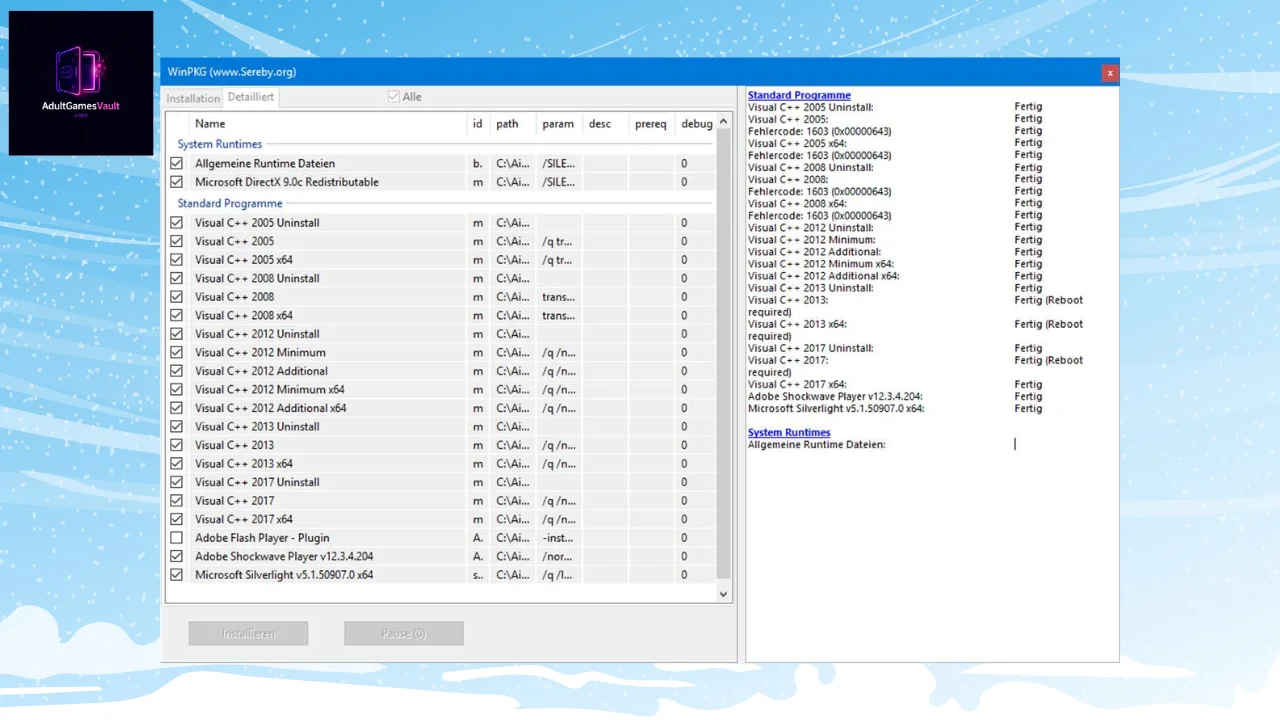
As soon as the extraction is done, the main AIO Runtimes window will pop up. This software is incredibly smart. It will immediately scan your Windows registry to see which runtimes you already have installed, and which ones you are missing or need updating.
On the left side of the window, you will see a checklist of all the software components. Only the boxes for the runtimes you are currently missing will be checked. If you already have the 2013 Visual C++ installed, it will automatically leave it unchecked so it doesn’t waste time reinstalling it.
Step 4: Review and Install
By default, you have a 30-second countdown before the software automatically starts installing everything that is checked. You can click the “Pause” button if you want to review the list.
For most gamers, my advice is simple: Leave everything checked. However, if you see an option for something like “Java Runtime Environment” and you know for a fact you don’t play any Java-based games, you can uncheck it to save a bit of space. But for all the Visual C++, DirectX, and .NET options, leave them firmly ticked.
Once you are ready, click the Install button.
Step 5: Let It Work and Restart
The software will now run silently through multiple installers. You will see command prompt windows open and close, and progress bars flash on the screen. Do not interrupt this process! Depending on how out-of-date your PC is, this could take anywhere from 2 to 10 minutes.
Once the window disappears and the installation is complete, restart your computer. This is a mandatory step to ensure Windows registers all the new system files.
Common Game Errors Fixed by AIO Runtimes
If you are wondering whether AIO Runtimes will actually fix your specific issue, here is a quick troubleshooting cheat sheet. If you see any of the following errors when launching an 18+ game, this tool is the answer:
- msvcp140.dll, vcruntime140.dll, or msvcr110.dll is missing: These are the most common errors in the visual novel community. They mean you are missing a specific year’s Visual C++ package. AIO Runtimes will completely eradicate this issue.
- Error code 0xc000007b: This usually happens when a 32-bit game tries to load a 64-bit runtime, or vice versa. Because AIO Runtimes installs both 32-bit (x86) and 64-bit (x64) architectures simultaneously, it fixes this architecture mismatch instantly.
- xinput1_3.dll or d3dx9_43.dll is missing: This means your PC is missing legacy DirectX 9 files, which is incredibly common on fresh Windows 10 or 11 installs. The DirectX updater inside AIO Runtimes handles this perfectly.
- The game launches into a pure white or black screen and freezes: While this can sometimes be a Locale Emulator issue, it is frequently caused by missing media foundation runtimes, which this package resolves.
Conclusion
Nothing kills the excitement of playing a newly downloaded game faster than a wall of system errors. While dealing with missing .dll files used to mean hours of tedious Googling and downloading shady individual files from sketchy websites, All in One Runtimes has turned a massive headache into a simple, one-click solution.
Whether you are setting up a brand new gaming rig or just trying to get a stubborn, classic visual novel to boot up, running AIO Runtimes should be considered a mandatory part of your PC setup process. Run the tool, let it update your frameworks, restart your PC, and get back to enjoying your games completely error-free.