
 Games
Games Game Series
 Guide
Guide
 简体中文
简体中文 हिन्दी
 한국어
한국어 Tiếng Việt
 ไทย
ไทยIf you are diving into the world of high-quality, fully modded 3D titles—like AI Shoujo, VR Kanojo, or massive, uncompressed visual novels—you already know they take up a staggering amount of hard drive space. Because these games can easily push past 40GB or 50GB, uploaders rarely host them as a single file.
Instead, you are usually faced with a daunting list of links. You have to click and download part01.rar, part02.rar, all the way down to part25.rar from file-hosting sites like Mega, MediaFire, Fikper, or Rapidgator.
Doing this manually through your web browser is a recipe for disaster. Chrome and Edge are notorious for randomly failing large downloads halfway through. Furthermore, if you lose your internet connection for even a second, you have to start that 2GB file all over again. Add in the nightmare of endless captchas, slow download speeds, and confusing ad-fenced links, and downloading a game becomes more stressful than actually playing it.
This is where JDownloader 2 steps in to completely automate the heavy lifting.
JDownloader 2 is a free, open-source download management tool that revolutionizes how you grab files from the internet. You simply copy the links, and the software takes care of the rest. It bypasses ad-links, solves captchas, resumes broken downloads, manages your premium accounts, and can even automatically extract the game for you when it finishes. Here is the ultimate guide on how to install and use it like a pro.
Why a Download Manager is Essential for Your Game Library
Before we get to the setup, let’s look at why JDownloader 2 is a mandatory tool for building your offline gaming vault.
The “LinkGrabber” Magic
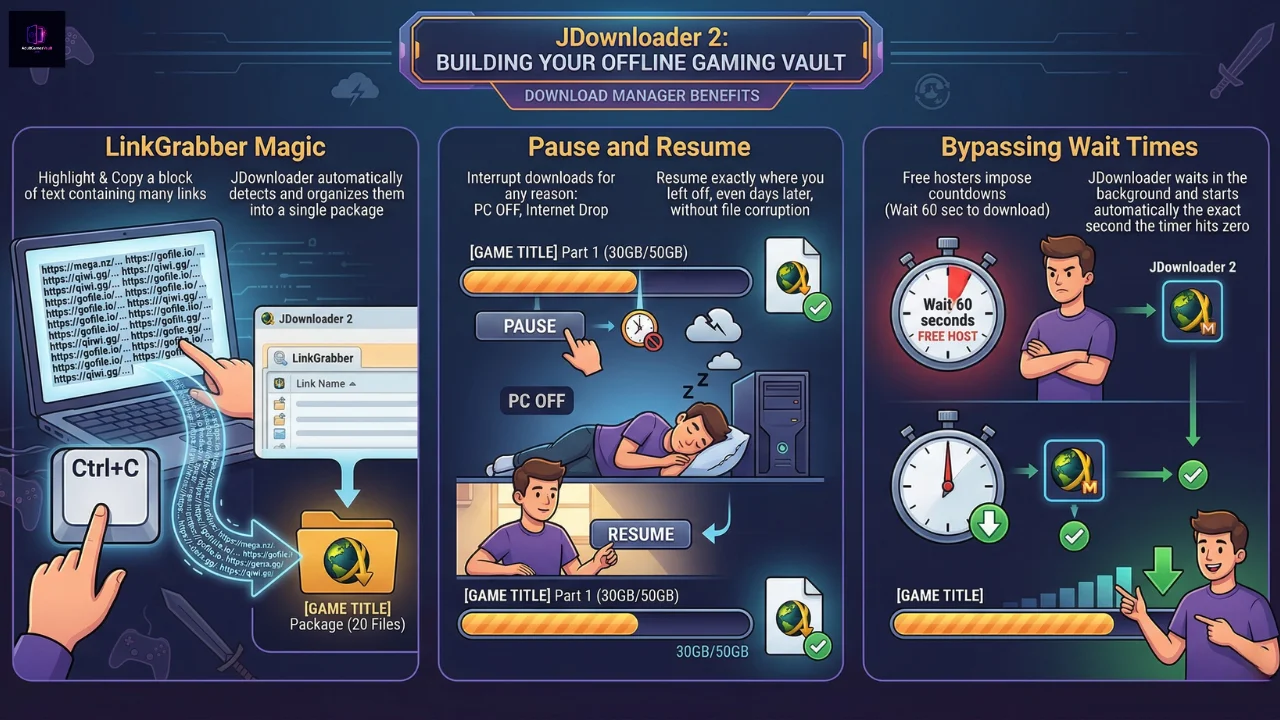
You don’t have to click download on 20 different files. If an uploader posts a block of text containing 20 Mega links, you just highlight the text and press Ctrl+C (Copy). JDownloader 2 monitors your clipboard, automatically detects the links, and neatly organizes them into a single game package ready to download.
Pause and Resume
Did your internet drop? Did you need to turn off your PC to go to sleep? No problem. JDownloader 2 allows you to pause your downloads and resume them exactly where they left off days later without corrupting the files.
Bypassing Wait Times
Free file hosters love to hit you with “Wait 60 seconds to download.” JDownloader 2 sits in the background and waits for you, automatically starting the download the exact second the timer hits zero.
Step-by-Step Guide: How to Download and Install JDownloader 2 Safely
Just like DAEMON Tools, JDownloader 2 is incredible software, but its standard installer comes bundled with adware to support the developers. You have to be careful during installation.
Step 1: Find the Clean Installer
While you can go to the official JDownloader website, the default download button often gives you the adware-bundled web installer. To avoid this entirely, look for the Adware-free setup on their official community forums, or search for “JDownloader 2 Clean Installer.” They provide offline installers that skip the bloatware entirely.
You can download it here:
https://jdownloader.org/jdownloader2
Step 2: The Installation Process
If you are using the standard installer, run the .exe file.
- Click “Next” through the standard setup screens.
- Crucial Step: When you see a screen offering a “Free Antivirus,” “Bing Search Bar,” or “Opera Browser,” click Decline or uncheck the box.
- Once you have bypassed the optional offers, the software will install cleanly to your PC.
Step 3: Initial Setup and Updates
When you launch JDownloader 2 for the first time, it might look like nothing is happening. It usually runs a background update right away. Let it sit for a minute. You will see a blinking icon in your system tray (bottom right corner of Windows) indicating it is updating. Once it is done, the main dashboard will open.
How to Download Games Using JDownloader 2
The dashboard has three main tabs you will use: Downloads, LinkGrabber, and Settings. Here is how to grab your first massive game.
Step 1: Copy Your Links
Go to the website where you found your game. Whether the links are hidden behind a text-pasting site or just listed in a forum post, highlight all the URLs at once and copy them (Ctrl+C).
Step 2: Check the LinkGrabber Tab
Open JDownloader 2 and click on the LinkGrabber tab at the top. Because the software monitors your clipboard, you should already see your files populating in this list!
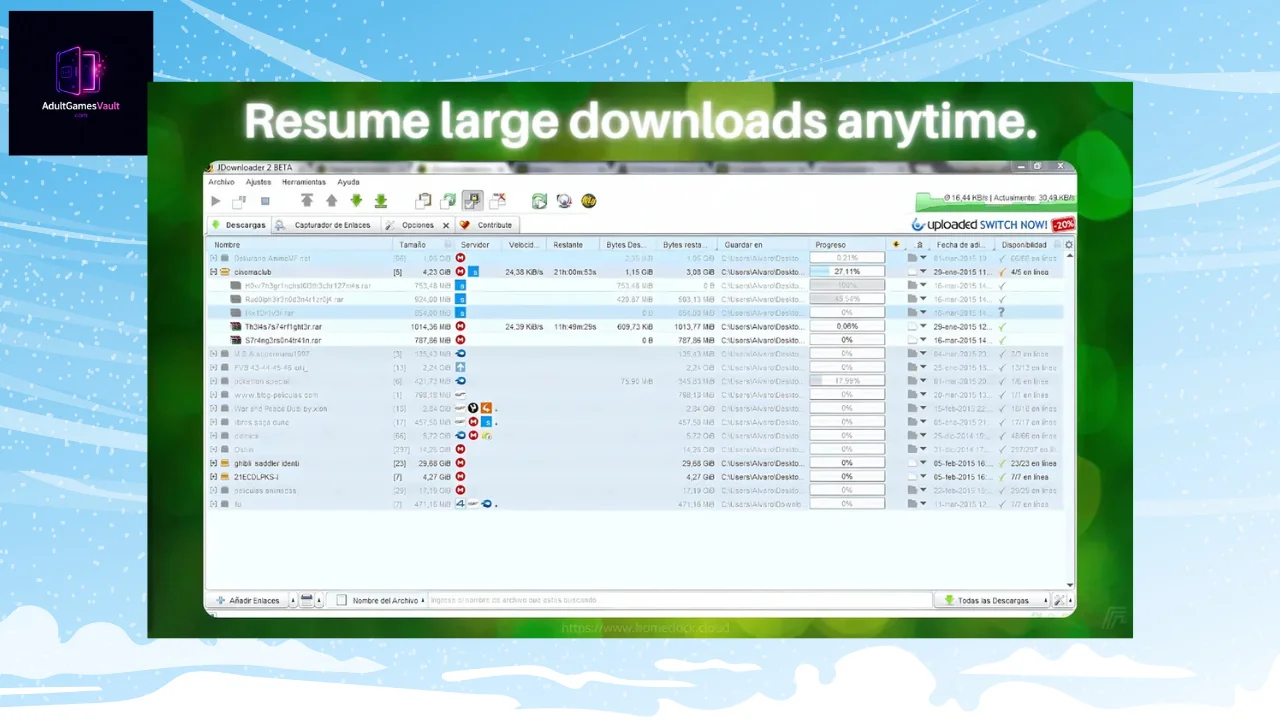
The LinkGrabber acts as a staging area. It analyzes the links, checks if the files are actually online (so you don’t start downloading a dead link), and bundles all the part1, part2, etc., into a neat little folder icon bearing the game’s name.
Step 3: Start the Download
If everything looks correct and the “Availability” column says “Online”, simply right-click the folder and select Start Download, or click the “Play” button at the top left of the screen.
The files will now move to the Downloads tab, where you can monitor your speed, ETA, and progress. You can now walk away from your PC and let the software do all the hard work.
Advanced Features to Supercharge Your Downloads
Once you are comfortable with the basics, tweak these settings to make managing your game vault effortless.
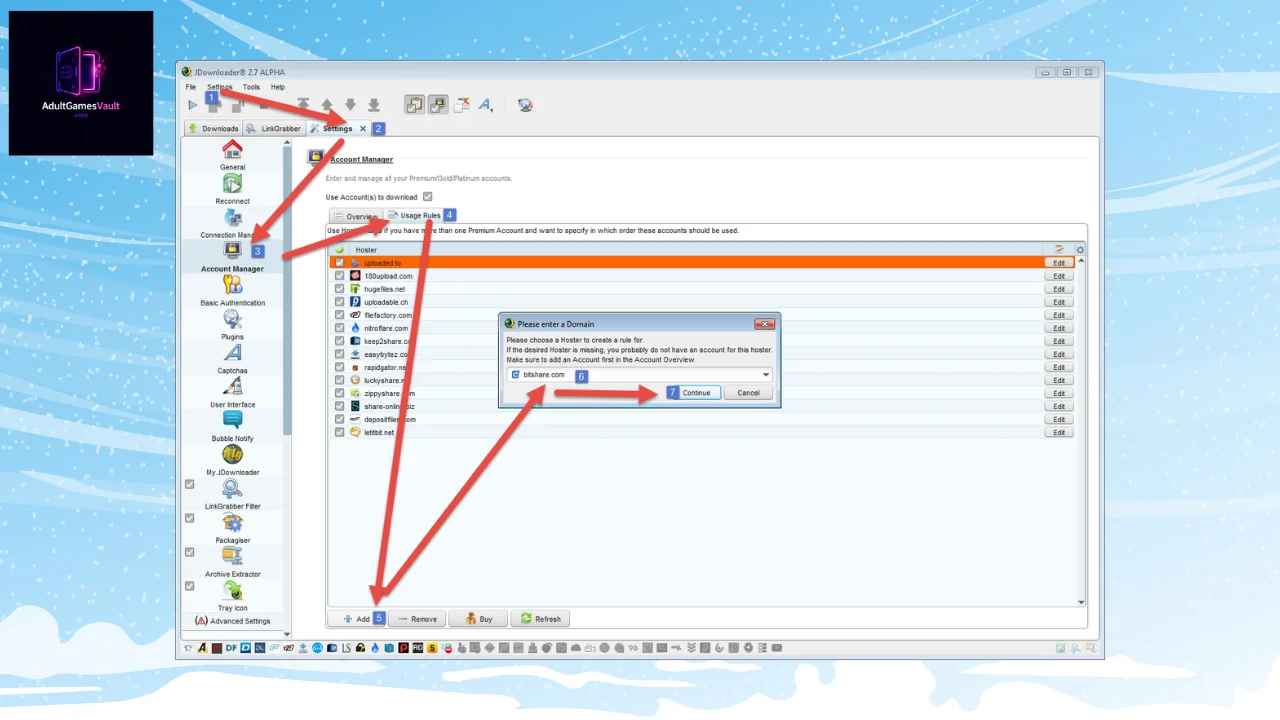
Integrating Premium Accounts
If you frequently download from sites like Rapidgator, Fikper, or KatFile, you know the free speeds are agonizingly slow. If you purchase a premium account for any of these hosters, you can link it directly to JDownloader 2.
- Go to the Settings tab.
- Click on Account Manager on the left menu.
- Click Add, select the hoster (e.g., Rapidgator), and enter your username and password. JDownloader 2 will now automatically use your premium bandwidth for maximum speed.
Setting Download Speed Limits
If you are downloading a massive 80GB VR game, it will consume your entire internet bandwidth, making it impossible to watch YouTube or browse the web while you wait. At the bottom right corner of the JDownloader 2 window, there is a small wrench and screwdriver icon. Click it to reveal the Speed Limit toggle. You can set it to throttle the download speed (e.g., limit it to 5MB/s) so you can still use your internet for other things.
The Auto-Extractor Module
This is the holy grail feature. JDownloader 2 comes with a built-in Archive Extractor. When you download a game split into 20 .rar files, you normally have to manually extract them using 7-Zip when they finish. By going to Settings -> Archive Extractor, you can check the box that says “Extract archives after download.”
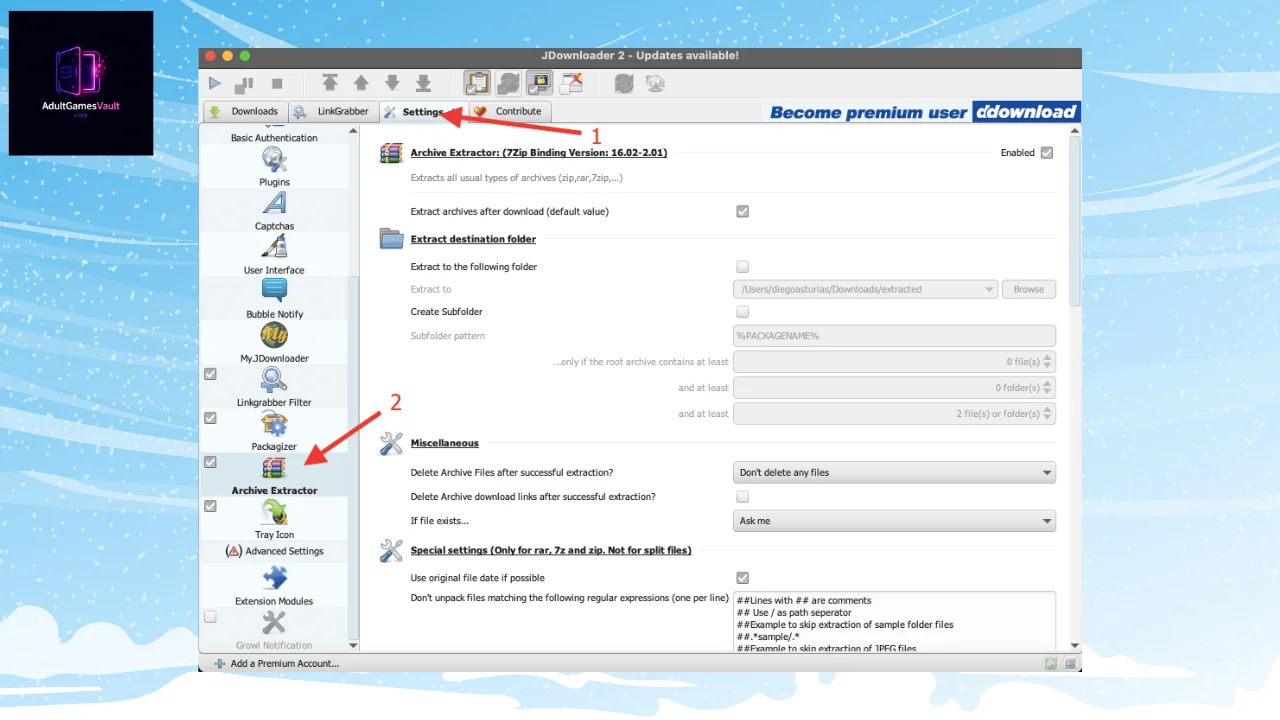
Now, when JDownloader 2 finishes downloading the final part of a game, it will automatically unpack the massive .iso or game folder for you, delete the original .rar files to save hard drive space, and leave the game ready to be mounted or played.
Conclusion
Building a massive library of high-quality, adult PC games shouldn’t feel like a second job. Relying on your web browser to handle dozens of split archive files is inefficient, prone to errors, and incredibly frustrating.
By taking five minutes to set up JDownloader 2, you are essentially hiring a tireless digital assistant. From automatically capturing links and solving captchas to unpacking the final files while you sleep, it streamlines the entire acquisition process. Keep it updated, hook up your premium accounts if you have them, and enjoy the luxury of truly automated downloading.